
In a previous blog (Freely Zooming in on Non-Profits), an organization has decided to use a free version of Zoom or purchase a license, the good news. The better news is that Zoom is a highly configurable tool designed to be used in large organizations with a myriad of complex and varying business requirements.
The bad news is that for a little non-profit, knowing which ‘buttons to push’ to get the ‘D*MN THING TO WORK’ can be a challenge. This blog gives you a cheat sheet on Zoom configuration. Other blogs in this series include:
- Freely Zooming in on Non-Profits
- Setting Up Zoom (TOO MANY OPTIONS!) – (This Blog)
- Zoom for the Newbie
- The Alpha Zoom & Other Tricks
- Tony White’s Presentation Notes and Tricks on Using Zoom
Setting Up Your Zoom
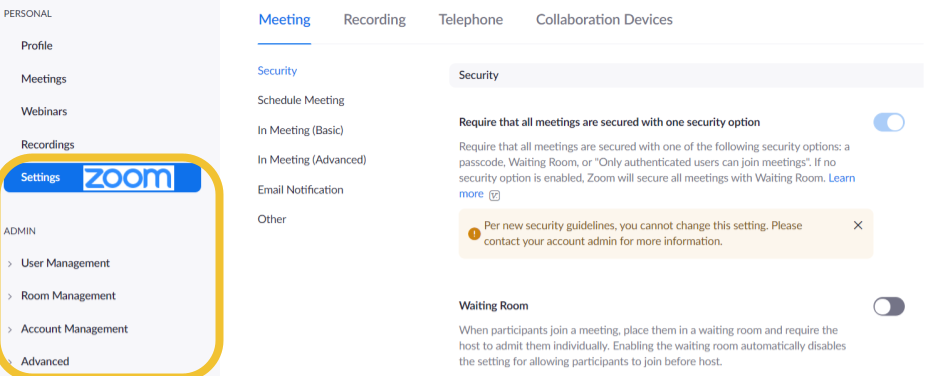
Whether you have a new Zoom account or have never bothered to look at the settings, a few things to consider adjusting [1]. However, these are highly context sensitive. What works for a small-non-profit with few confidentiality issues will not necessarily work for a large organization dealing with highly sensitive client matters. Evaluate each of the following on its own merits. Also, there are a LOT of buttons to push so the following only scratch the surface of possible configurations.
Roles and Access. Changes to the general settings of a Zoom account requires sufficient privileges. The Grand-Pooh-Bah of privilege is the Owner of the account. For a single license scenario, the Owner is also the Administrator. For multiple licenses, there will still be an owner but now you can assign minions to do your bidding… I mean administrators to manage Zoom. If there is only one email account, by default it is the owner; Admins can be added if there are two or more additional licenses (see Freely Zooming In on Non-Profits: The Cost of a Zoom with a View).
Profile and User Management
- Profile Picture: Upload your organization’s logo as a profile picture. This will help with branding and identification in the meetings.
Account Management
- Account Profile-Alias: Enter an alias meeting attendees will recognize. For example, “Edmonton-Red Cross” rather than RC or Red Cross.
- Account Profile-Support: Enter the name of the person who can support other users who use the account. Ideally someone confident in using Zoom.
- Account Profile-Recording: If you record your meetings and are concerned about the ability for foreign governments accessing the recording, specify your own (e.g. Canada). Realistically, if you are a non-profit, exactly what highly sensitive secrets do you have anyway?
Security Settings
- Account Settings-Security: If you are a corporate client, security is a concern. The last thing you want is a competitor sneaking in as you discuss your patent application. For most non-profits, security is a matter of ‘it depends’.
- Privacy Considerations: If you are using Zoom to discuss protected information (e.g. client information), then take the time to examine the security functions. The last thing you want is for someone to inadvertently wander into the wrong session.
- Transparency and Meeting Overrides: If your non-profit does not normally deal with privacy considerations, then leave the security functions open. Many can be overridden to a more robust setting for individual meetings.
- Waiting Room and Passcodes: Personally, I hate the waiting room in Zoom but understand its need. Unless you have a privacy consideration, turn it off and let meeting attendees pop in when they can. The same goes for passcodes, unless you have a compelling reason to keep people out, let them in!
Meeting Settings
- Account Settings-Schedule Meeting: Allow participants to join before host. During COVID, Zoom is one method that allow members to connect. Consider allowing individuals to join early so as to socialize.
- Account Settings-In Meeting (Basic & Advanced): These settings control the look, feel and functionality in the meeting.
- Chat and Private Chat, below I discuss the use of chat so definitely enable these!
- File transfer, why would you want to email documents to meeting attendees when you can transfer a file in a chat.
- Meeting Polls, Polls are a useful feature of Zoom and are discussed below.
- Who can share?; Who can start sharing…; Whiteboard; Remote control, too much time is spent in Zoom meetings trying to get screens shared. Enable these settings by default – override at a specific meeting level if necessary.
- Breakout room, these can be tricky to control and manage but by default, give yourself the option. For more on this, see the blog [The Alpha Zoom & Other Tricks].
Notes and Further Reading
- Zoom has good documentation on settings and what they do. They come in written and video formats. In addition, they run frequent overview sessions you can attend live. Finally, the test meeting is a great resource to confirm computer functionality. See: Zoom, Hello. How can we help?
 Organizational Biology