
My notes from a session hosted by Tony White, a consultant and training specialist from Ontario [1]. This 3.5-hour session was hosted by the Canadian Executive Services Organization (CESO) and was well run and informative.
This is the last in a blog series about setting up, configuring and using Zoom (or other technologies) for virtual meetings. The series was designed to help non-profits adopt and use virtual meeting technologies such as Zoom. Other topics include:
- Freely Zooming in on Non-Profits
- Setting Up Zoom (TOO MANY OPTIONS!)
- Zoom for the Newbie
- The Alpha Zoom & Other Tricks
- Tony White’s Presentation Notes and Tricks on Using Zoom (This Blog)
Session Overview
The agenda for the session was as follows.
- Understand the broad applications of virtual facilitation skills
- Polling functions
- Interactive discussions
- Use of breakout rooms
- Use of white boarding
- Use of annotations
- Basic technology/organizational tips
- Creative and engaging techniques to support communications & change management.
I won’t rehash content presented previously but I do want to highlight 6 things.
Great Tools and Ideas
WIIFM (Zoom and Reciprocity)
Asking for people’s time whether in a virtual or physical meeting requires that you have a darn good reason to use those minutes.
This of course is nothing new but always a good reminder that before running a meeting answer the WIIFM – What is in it for me? What is the benefit a person will derive from a Zoom meeting versus spending those minutes doing something else? Not being able to answer the WIIFM likely means disengaged participants, inclusive results and no-shows for future meetings [2].
A WIIFM example Tony provided concerned brainstorming. Be sure to have a very specific question to be considered. Otherwise, the engagement will be low and the results generic and of little use. In contrast, a well crafted and focused brain storm question can yield surprising results particularly when used with other techniques such as the Word Cloud discussed below [3].
Zoom Set Up
Now that you know WHY you are meeting, Tony has some specific suggestions for the meeting’s setup:
- Technical Environment of the Moderator.
- Physical Surroundings for the Participants.
Technical Environment of the Moderator. Tony uses a dual monitor and logs in to the meeting a second time on a different device so he can see what participants are seeing. This second device need only be a tablet or an old laptop. The checklist discussed below provides other bits of technology including one that Tony stressed – a good headset and microphone.
As an aside, I am finding more people going away from wireless headsets but instead sticking to the certainty of a plug-in. Given the number of times I have had to fiddle with Blue Tooth settings, I would concur.
Physical Surroundings for the Participants. Asking participants to mute unless speaking helps with the physical surroundings and the inevitable slamming garbage truck outside their window. Other surrounding suggestions provided included the following:
- Camera off except when speaking, at the start or end of the session or during a Gallery view time (see below for a discussion on this) [3].
- Paper/Pen Handy. This allows participants to make notes and provides another method of engagement. For example, when brain storming, give the person 30-seconds to consider the question. Having the participants write down the question and providing ~30-seconds to consider it improves the response confidence.
Getting the Meeting Going & Games
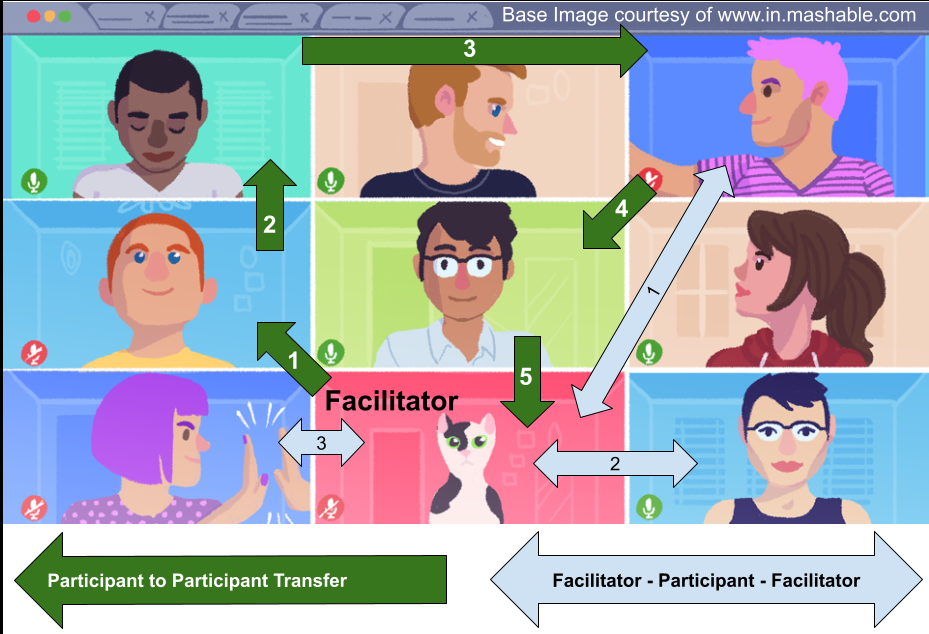
Tony stressed the importance of initial engagement of the participants in a virtual call. Facilitators know this from in-person sessions in which it is important to set a group dynamic. Ensuring everyone can go to the Gallery view is one important hack – assuming the meeting is not TOO large of course.
Once in the gallery view, Tony suggested two ways to control a session. The first is for the facilitator/moderator to be the center of any communication exchange (blue arrow). The ‘floor’ goes from the facilitator to another person and then back; and so on.
The alternative is for the floor to be passed from one speaker to another without it going back to the facilitator (green arrow). Tony used the example of passing a piece of fruit out of frame to the next speaker who receives it (with their own piece of fruit) before passing it on to the next speaker (and so forth). In person meetings use ‘speaking sticks’, hands up, ‘going around’, etc. to accomplish this.
Breakout Room Hacks
Zoom provides three different ways to arrange individuals into breakout rooms – Assigned, Random Assignment and Self-Select. Assigned is best used when there is a compelling reason to keep a group together (e.g. engineers doing an engineering-thingy). Random does just that – assigns based on a random selection of participants.
Self-select is a good choice when there is a personal interest in one topic over another. This allows individuals to leave and wander into other breakout-rooms. Potentially disruptive but could also be entertaining in a Marx Brother sort of way. Zoom also allows you to move people between rooms to balance numbers, expertise, etc.
All of the above are pretty standard Zoom functionality covered extensively elsewhere. Tony’s hack is much simpler: copy and paste the room’s instruction into the chat. Leaving the main area and going to a room means you no longer can see what is being presented. Having the room’s action in the chat keeps it handy.
If possible, use interested people as sub-moderators to help out in the breakout rooms.
Polleverywhere.com
While Zoom has its own polling function, Poll Every Where has taken this a bit further. In particular, I like the real time generation of Word Clouds to help arrive at a consensus about a decision. For CESO, this is a good tool as the words entered don’t need to be in the same language. In fact, entering different languages will help to indicate the predominance of preferred language. Best of all, it drops directly into a slide deck (e.g. PowerPoint).
The Extra-Prepared Virtual Facilitator and Producer Checklist
This extensive checklist was created by Cindy Huggett [2] and provides just about every possible contingency for what can go wrong (except of course for the contingency no one has thought of yet!). It is broken into:
- Classroom Software
- Computers & Technology
- Internet & Telephone Connections
- Training Content
- Training Hospitality and Event Management
- Facilitator and Other Support
- Participants
Virtual Here to Stay
As discussed in other blogs, virtual meetings are here to stay. This is a good/bad thing. Good that travel to a board meeting on icy roads in the middle of winter is no longer required. Bad because of the loss of human connections associated with social aspects of gatherings.
Thanks to Tony in providing guidance on how to make the best of the virtual meeting. Some of the above is directly translatable to when we can sit in the same room once again post-COVID.
Notes and References
- Tony specializes in adapting formally in-person training to the virtual platforms. See Virtual Tony White Training – Training and Facilitation Services.
- I was reminded of this acronym from Tony (I had completely forgotten about it). It goes by many names include the concept of reciprocity or managing WIN-WIN negotiations. An internet search does not reveal WIIFM origin although the first instance of the idiom being used in the literature is from 1991.
- There is an active discussion on whether video should be on or off during a call. In the end, my vote is for ‘off’ except when required (start of the call, speaking, gallery view activity, close of the call, etc.). Amongst other things, this reduces Zoom-Fatigue. An internet search yields a wide range of opinions, this is one discussion from the Harvard Business Review – How to Combat Zoom Fatigue.
- Ms. Huggett’s website offers a variety of resources and excellent information about virtual training and facilitation: www.cindyhuggett.com.
 Organizational Biology